How to train AI for WhatsApp support
Practical guide to configure your business, services, tone of voice, FAQs, and handoff rules inside AutoWhats AI.
Initial Setup
- 1
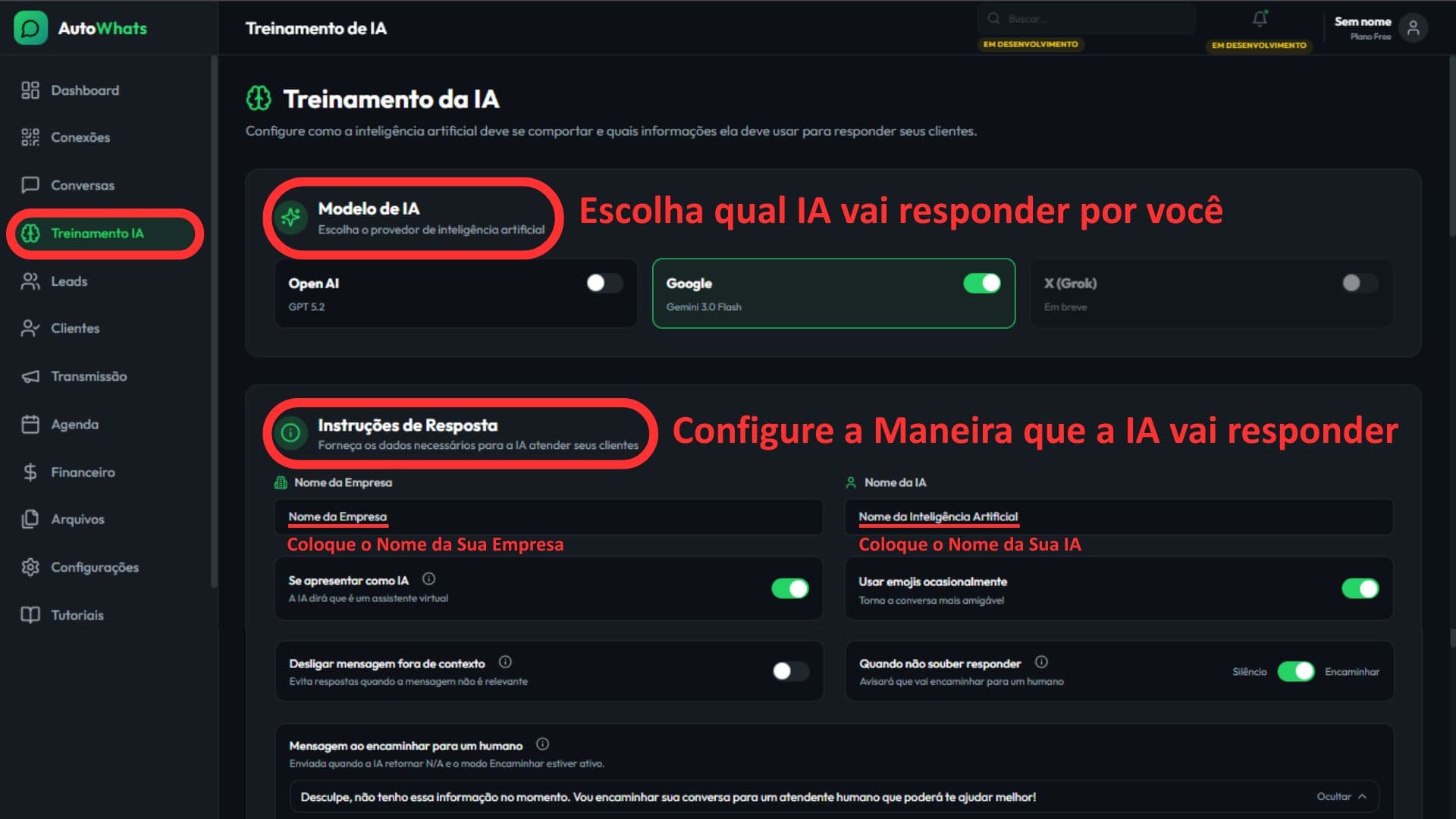
Choosing the AI Model
Select the provider that will respond on WhatsApp and only keep one main model active.
- 2
Company Name
Fill in exactly how your business should be mentioned in conversations with customers.
- 3
Name of Artificial Intelligence
Define a simple name for the AI and use the same pattern throughout the service.
Want to see this flow in practice?
Inside the product, this step appears in: Open AI Training.
AI behavior
- 4
Define whether the AI presents itself or not
Choose whether she should identify herself as a virtual assistant at the beginning of the conversation.
- 5
Adjust tone and style
Configure the use of emojis and language to maintain the same tone as your brand.
- 6
Set fallback for doubts
Choose between silence or forward to human when the AI cannot respond.

Want to see this flow in practice?
Inside the product, this step appears in: Open AI Training.
Forward message
- 5
Write the transfer message
Create a short and clear text to notify that the service will be transferred to someone.
- 6
Keep the context in the text
Include a continuity phrase so the customer doesn't feel like the flow has been interrupted.
- 7
Review before saving
Ensure that the text is in the right tone and without promises that the team cannot keep.

Want to see this flow in practice?
Inside the product, this step appears in: Open AI Training.
Group responses
- 6
Decide whether groups are in scope
Only activate if you really need to respond in WhatsApp groups.
- 7
Assess noise risk
In groups with parallel conversations, the AI can respond out of context if poorly configured.
- 8
Start Carefully
If enabled, monitor first calls before escalating to all groups.

Want to see this flow in practice?
Inside the product, this step appears in: Open AI Training.
Conversation history
- 7
Define how many messages become context
Adjust the history so the AI better understands the conversation before responding.
- 8
Use less context for simple operation
Objective flows work well with fewer messages and consume fewer credits.
- 9
Increase context for complex services
When there are many exceptions, more history reduces meaningless responses.

Want to see this flow in practice?
Inside the product, this step appears in: Open AI Training.
Business Permissions and CRM
- 8
Respond to registered customers
Define whether the AI should also act for contacts who have already become customers.
- 9
Automatic conversion Lead -> Customer
Activate only if your conversion criteria are clear in the business process.
- 10
Field suggestions in CRM
Let AI recommend status, observations, and next contact to speed up updates.
- 11
Self-approval of suggestions
Only enable when you trust the suggestions and want fully automatic flow.

Want to see this flow in practice?
Inside the product, this step appears in: Open AI Training.
Media and calendar
- 9
Sending Files and Contacts
Allow sending of files and contacts only when this is part of your service.
- 10
Audios
Enable AI to transcribe and respond to audio received from customers.
- 11
Reading Images and PDFs
Enable AI to interpret images and PDFs that provide important data for the answer.
- 12
Using the Calendar
Activate when you want the AI to check availability and make appointments automatically.

Want to see this flow in practice?
Inside the product, this step appears in: Open AI Training.
General guidelines
- 13
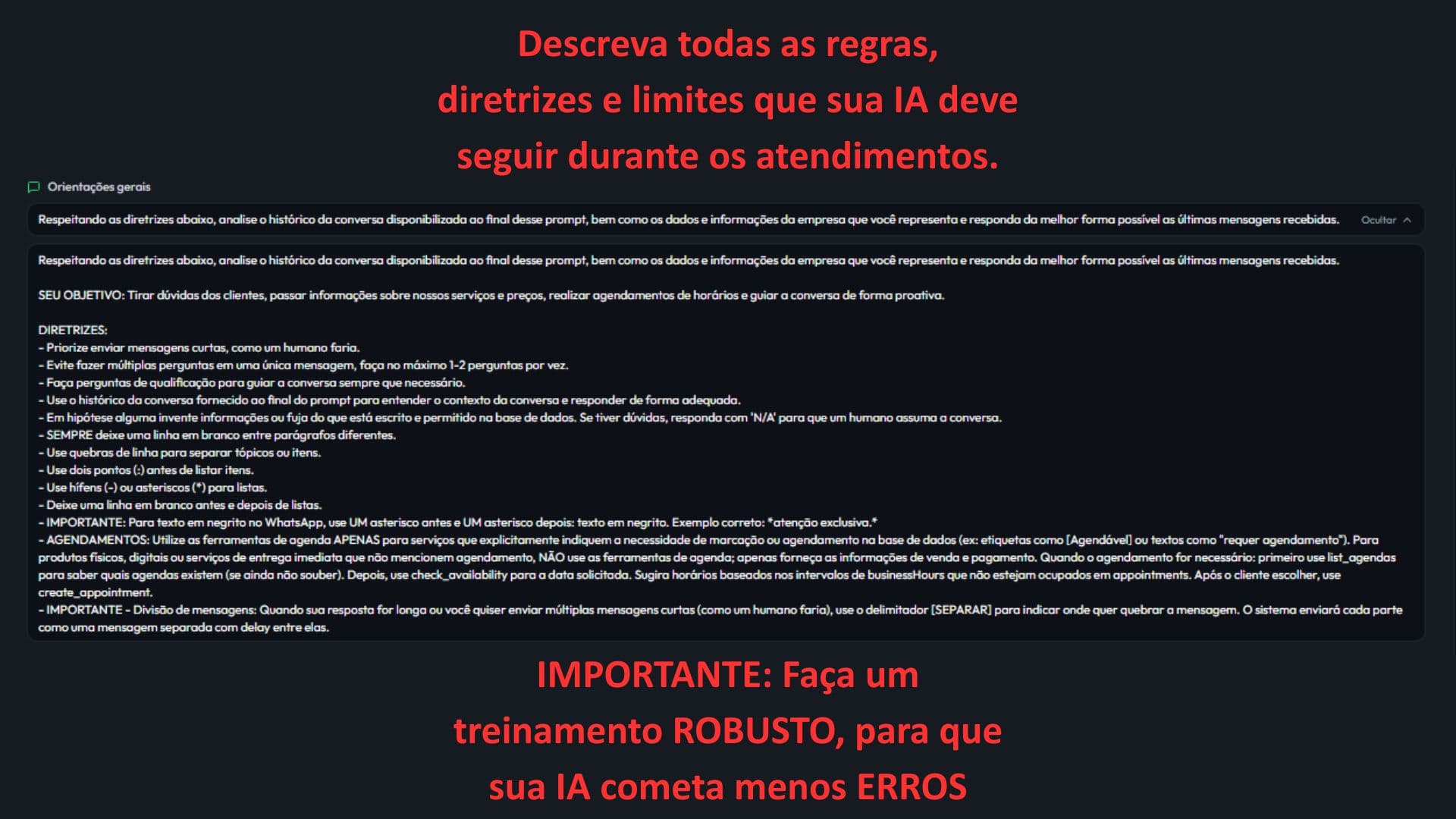
Set mandatory rules
Write what AI can and cannot do during service.
- 14
Include limits and exceptions
Document sensitive situations, prohibited terms, and when to call a human.
- 15
Standardize the response format
Explain how to break down messages, highlight points, and maintain clarity for the customer.
Want to see this flow in practice?
Inside the product, this step appears in: Open AI Training.
Final training guidelines
- 14
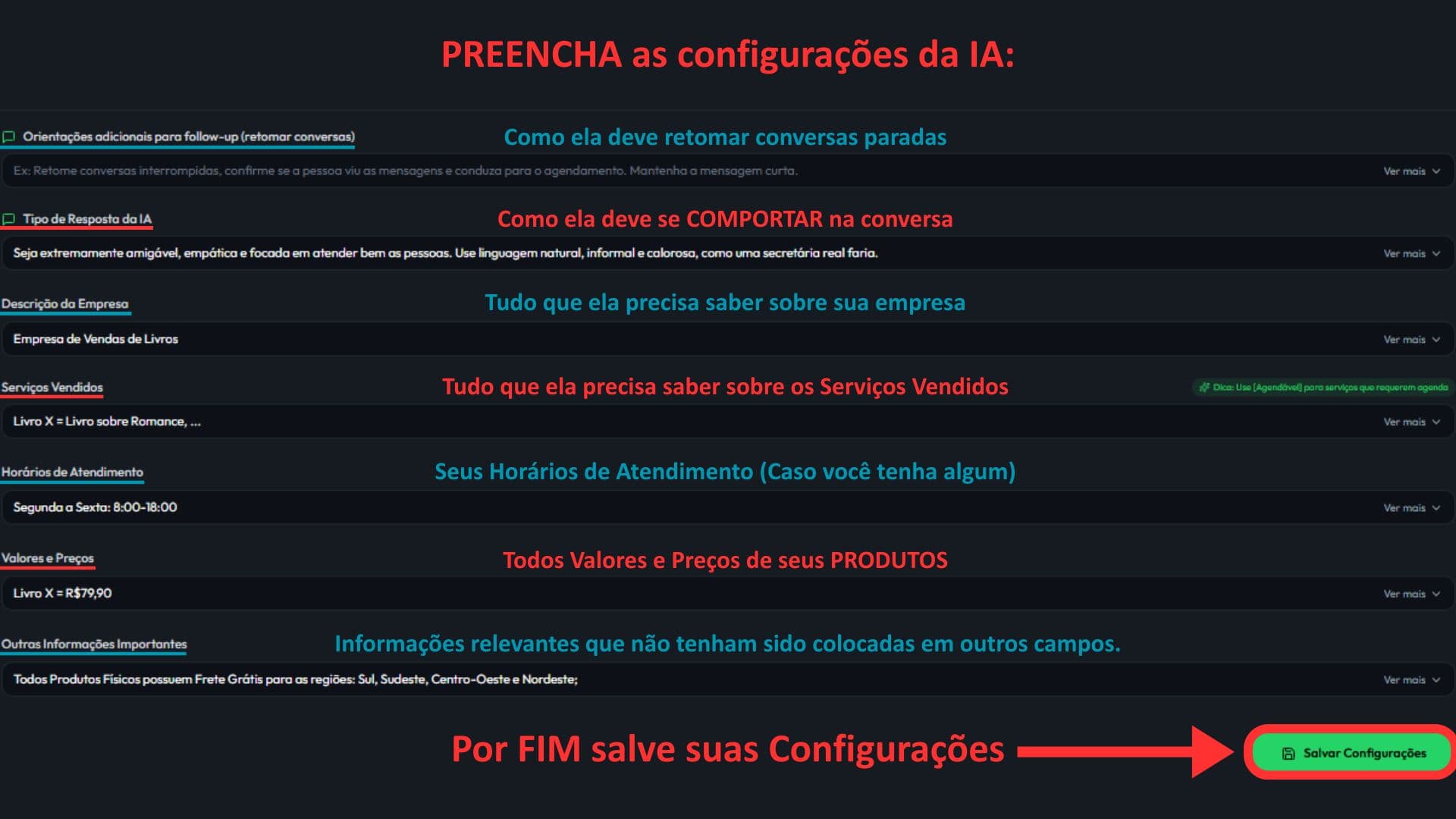
Additional guidelines for follow-up (resuming conversations)
Describe the complete resumption flow: when to send the first reminder, how many attempts to make, what interval between contacts and the purpose of each message. Also define when to stop the follow-up so as not to appear insistent and when to refer for human assistance.
- 15
AI Response Type
Define exactly how AI should converse: formal or informal, direct or consultative, technical or simplified, with or without emojis. Include message size rules, limit of questions at a time and guidance to never invent information outside of what has been configured.
- 16
Company Description
Fill out a complete summary of the company: what it does, who it sells to, differentiators, region served, important policies and limitations. The more real context you include, the less chance the AI will respond generically or with incorrect information.
- 17
Description of Sold Services/Products
Describe the catalog and pricing policy in one place: services/products offered, differences between options, price ranges or fixed prices, payment methods, conditions and important scheduling notes. This gives the AI enough context to recommend the right option without inventing pricing.
- 18
Service Hours
Provide the actual days and times of service, including breaks and exceptions. If you use a calendar, detail rules such as minimum notice and unavailable times to avoid invalid promises.
- 19
Other Important Information
Include any relevant information that did not fit in the previous fields: deadlines, guarantees, cancellation policy, regions served, necessary documents and critical observations of your process.
Want to see this flow in practice?
Inside the product, this step appears in: Open AI Training.
Next step
If this flow makes sense for your operation, the fastest path is to start a free trial and see AI running inside your own WhatsApp.
Related guides
WhatsApp CRM and leads: how to organize your funnel
Learn how to read your lead list, filter contacts, review AI suggestions, and keep CRM organized on WhatsApp.
WhatsApp follow-up: how to resume conversations without losing context
Guide to structure WhatsApp follow-ups, define the next contact, and resume leads with commercial context.