How to connect WhatsApp Business with a QR code
Practical guide to connect WhatsApp Business with a QR code and confirm the session is ready for operation.
Generate the QR Code
- 1
Open WhatsApp on your cell phone
Use your service's main device and confirm that it has stable internet.
- 2
Click "Generate QR Code" on the dashboard
On the Connections screen, click the green button to create a new and valid QR.
- 3
Leave this screen open
Do not close the page before reading; the QR may expire and you would have to generate another one.
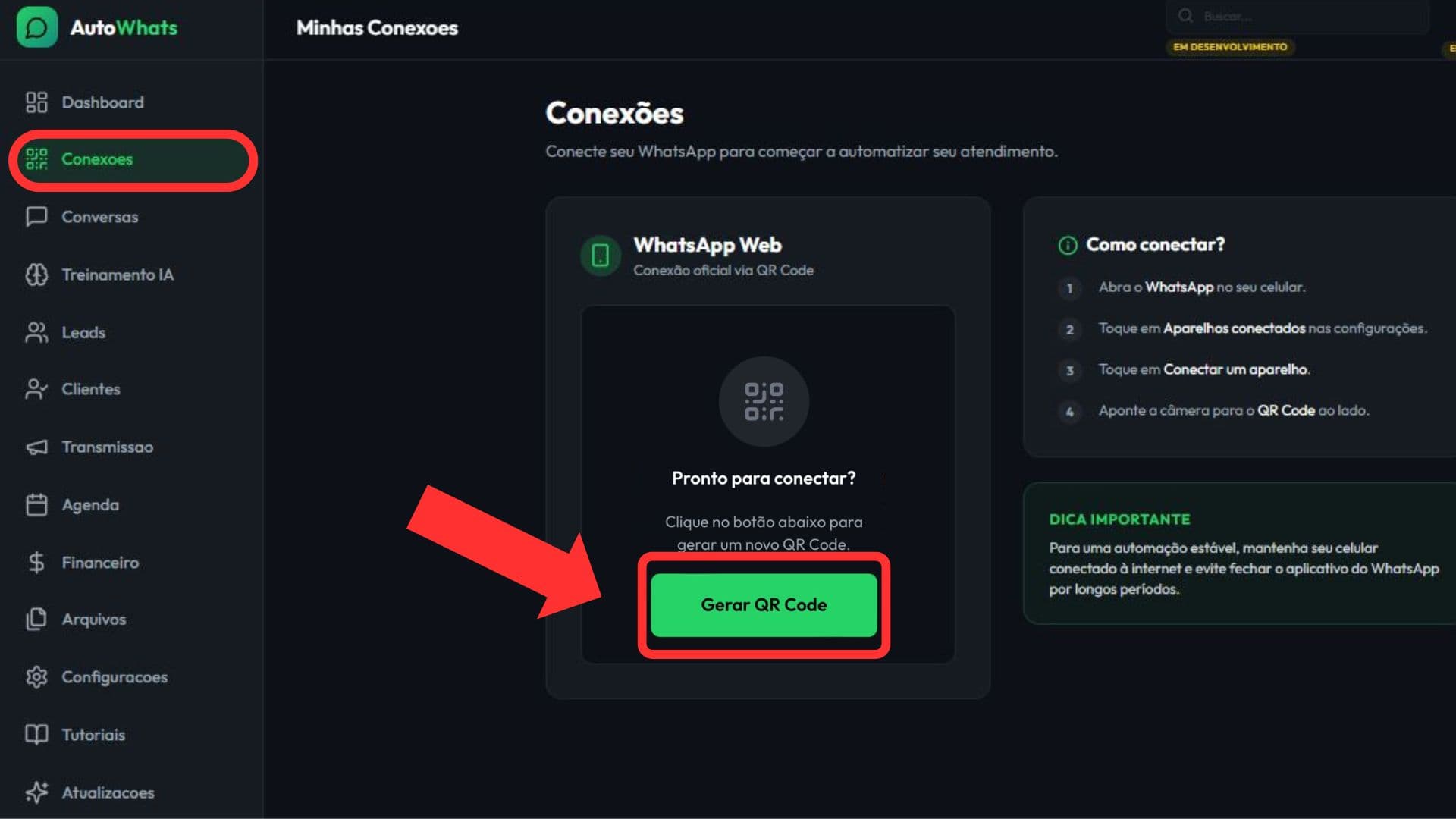
Want to see this flow in practice?
Inside the product, this step appears in: Open Connections.
Read the QR Code on your cell phone
- 3
In WhatsApp, open "Connected devices"
In the app menu, go to Connected devices and tap Connect a device.
- 4
Point the camera at the QR on the screen
Center the entire code in the frame for immediate reading.
- 5
Wait for confirmation
In a few seconds, WhatsApp completes the pairing and releases the panel.
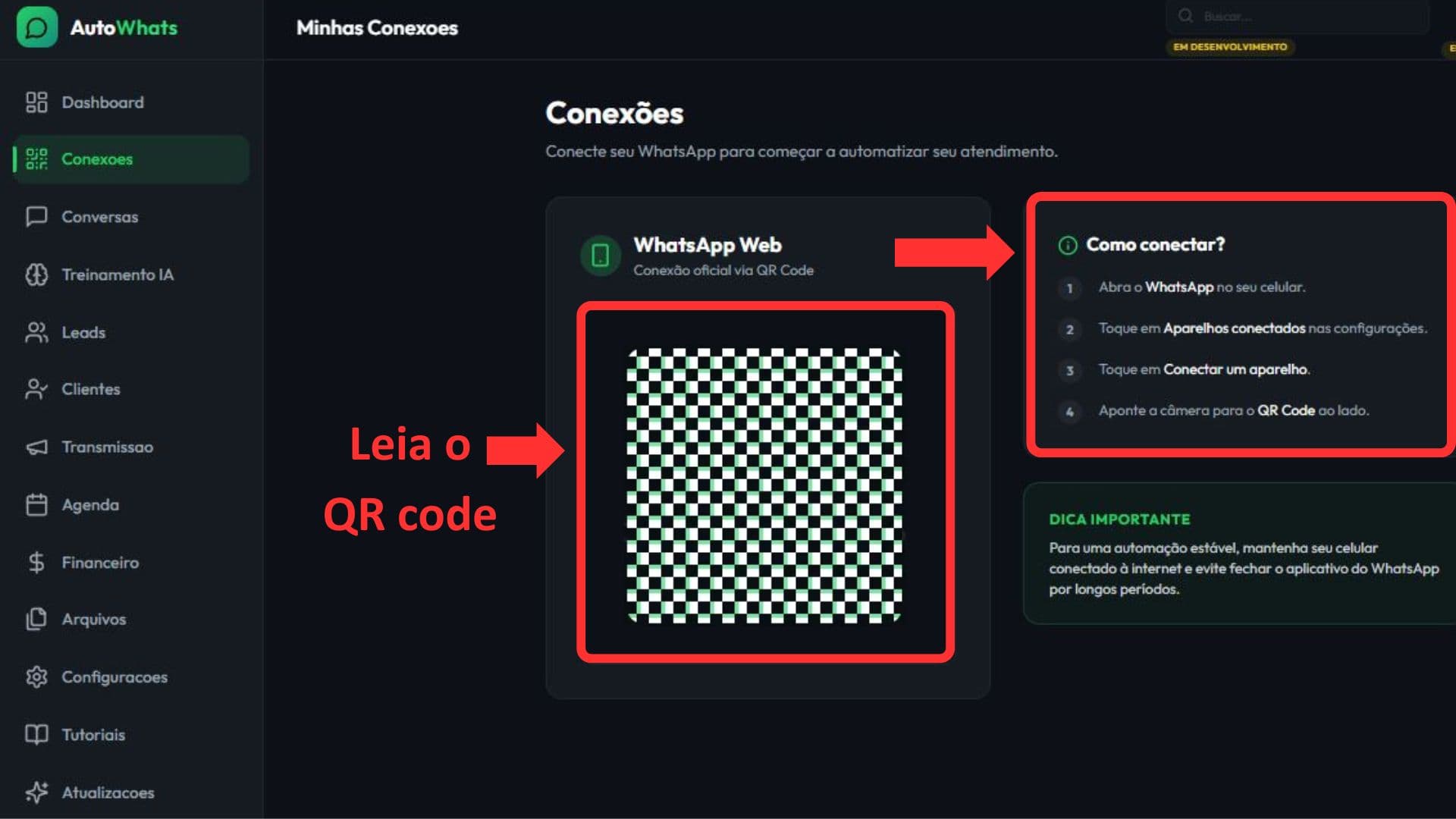
Want to see this flow in practice?
Inside the product, this step appears in: Open Connections.
Confirm connection
- 4
Check status on dashboard
Confirm the successfully connected message to ensure the session was created.
- 5
Test a real conversation
Open Conversations and check if recent messages are loading normally.
- 6
If it fails, generate another QR
When the connection does not complete, go back to Connections and repeat the flow from the beginning.
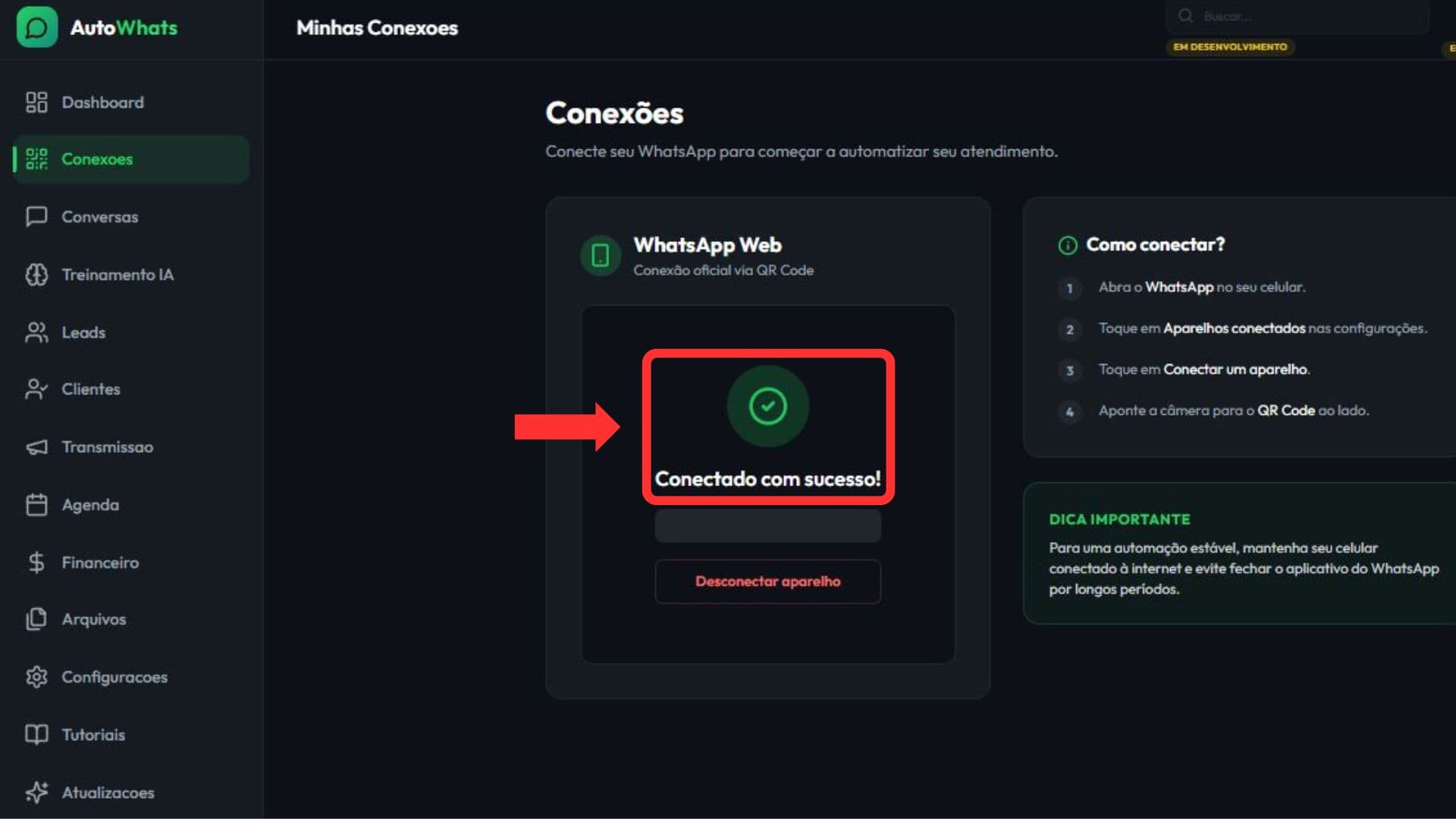
Want to see this flow in practice?
Inside the product, this step appears in: Open Connections.
Next step
If this flow makes sense for your operation, the fastest path is to start a free trial and see AI running inside your own WhatsApp.
Related guides
How to train AI for WhatsApp support
Practical guide to configure your business, services, tone of voice, FAQs, and handoff rules inside AutoWhats AI.
WhatsApp scheduling: how to organize time slots and confirmations
Guide to configure availability, review events, and keep scheduling conflict-free in your WhatsApp operation.